
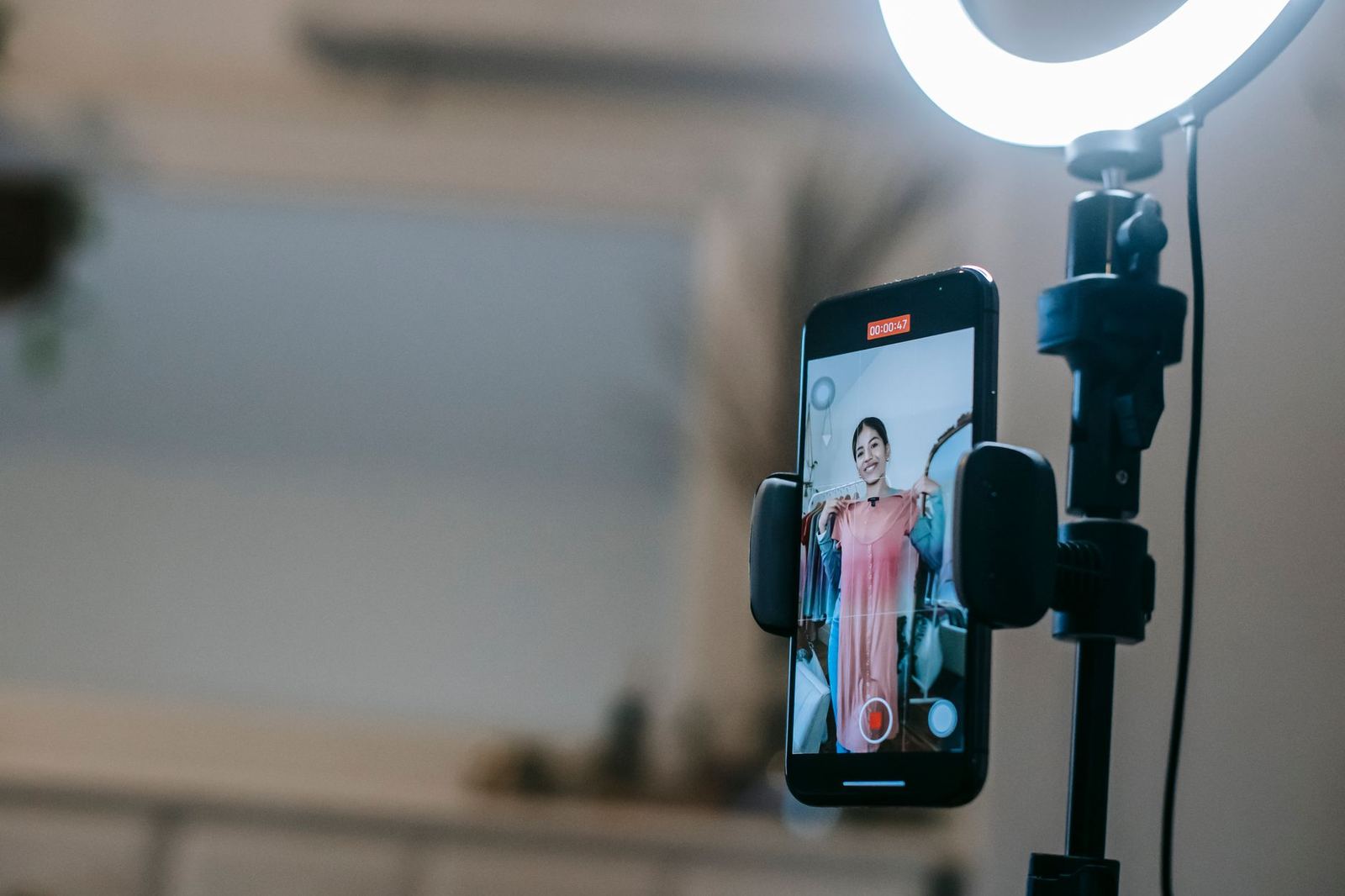
Wondering how to make Instagram reels without getting lost in the menus? Open the camera, pick Reels, record or upload clips, add audio and effects, then share. That is the whole flow.
This guide sits within our wider look at social media content creation, which covers planning and producing posts across platforms.
| Item | Value |
|---|---|
| Instagram Reels announced by Meta | August 5, 2020 |
| Clip format described at launch | 15-second multi-clip videos |
| Timer countdown before recording starts | 3-2-1 countdown |
| Life of a reel shared only to a Story | 24 hours |
| Where to start in the app | Reels option at the bottom of the Instagram camera |
These figures come from Meta’s newsroom announcement of Instagram Reels. The app changes over time, so check the source before you rely on them.
What to know before you start recording
A reel is a short vertical video made inside the Instagram app, built from one or more clips. Meta’s launch announcement describes Reels as a way to create videos to share with friends or with anyone on Instagram.
Your account type shapes who can see the result. A public account can reach people beyond its followers, while a private account keeps reels within its follower list, as set out in Meta’s announcement.
Nothing special is needed to begin. You can film live in the app or bring in footage you already have on your phone.
How to make Instagram reels: the step-by-step flow
The launch notes explain that reels can be recorded in a series of clips, all at once, or from gallery uploads. The steps below follow that outline, so your screen may look a little different if the app has been redesigned since.
- Select Reels at the bottom of the Instagram camera.
- Choose your audio, either a song from the music library or your own original sound.
- Pick an AR effect if you want one, and set the timer if you need your hands free.
- Press and hold the capture button to film your first clip, and release to stop it.
- Add more clips one at a time, or upload footage from your gallery.
- Move to the share screen to finish the details and post.
While you hold the capture button, a progress indicator appears at the top of the screen. It shows how much of your reel you have filled so far, according to Meta’s description.
The editing tools on the left side of the screen
Instagram’s launch post lists a set of creative tools along the left side of the camera. Each one solves a specific problem, from keeping time with a song to hiding a cut.
- Audio: search the Instagram music library, or record with your own sound.
- AR Effects: pick from a gallery of effects made by Instagram and creators, and use different ones across clips.
- Timer and Countdown: record hands-free after a 3-2-1 countdown.
- Align: line up objects from the previous clip so the next one matches.
- Speed: speed up or slow down part of the video or audio.
Align is the tool to reach for when you want a smooth jump, such as an outfit change or a friend appearing mid-reel. The launch announcement names those exact moments as its use cases.
Speed pairs well with music. Slowing a section can stretch a moment, while speeding it up helps a cut land on the beat.
Choosing audio: music library or your own sound
You have two routes for sound. You can search a song in the Instagram music library, or you can simply record the reel with original audio.
If you share a reel with original audio, it is attributed to you. On a public account, other people can then build their own reels from your sound by tapping “Use Audio”, per Meta’s announcement.
On a private account the rule is stricter: others cannot reuse your original audio, and your reels cannot be passed along to people who do not follow you.
Finishing and sharing your reel
Once the clips are in place, the share screen is where you tidy up. You can save a draft, change the cover image, write a caption, add hashtags and tag friends.
After posting, the reel lives on a separate Reels tab on your profile. If you also send it to your Feed, it appears on your main profile grid, and you can remove it from there if you prefer.
Hashtags can do extra work here. Reels that use certain songs, hashtags or effects may also show up on the dedicated page for that song, hashtag or effect, as Meta explained at launch.
If a still-image format suits your idea better, instagram carousel posts are a separate option worth reading about.
Where a reel shows up: Explore, Feed or Story
As of Meta’s August 2020 announcement, a public account could share a reel to a dedicated space in Explore as well as to followers in Feed. Featured reels, chosen by Instagram, trigger a notification to the creator.
Sharing to a Story, close friends or a direct message works differently. Per the same announcement, that reel behaves like a regular Story: it stays out of Explore, stays off your profile and disappears after 24 hours.
For a closer look at running time, see our separate guide on instagram reels length, since the launch figure above is dated.
Frequently asked questions
How long was a reel when the feature launched?
Show answer
Meta’s August 2020 post described 15-second multi-clip videos, and you can read that wording in the original announcement. Treat it as a launch detail rather than a current limit.
Can I film a reel without holding the phone?
Show answer
Yes. The timer tool lets you set a delay and walk into frame, and recording begins once the countdown finishes.
Will a private account’s reels appear in Explore?
Show answer
The announcement ties Explore sharing to public accounts. Private accounts follow their privacy settings, so reels reach followers only.
Can I mix filmed clips with footage from my gallery?
Show answer
The launch description says clips can be recorded one at a time, all at once, or taken from gallery uploads. Those options sit side by side in the same reel workflow.